Whopper Clicker on Mobile
Yes, the Whopper Clicker game works on phones, tablets and Chromebooks: open it in the browser and tap the burger. There is nothing to install, and you can add it to your home screen for one-tap access. This guide covers touch controls, the home-screen icon, how saves work on each device, and portrait versus landscape for our burger clicker.
Touch controls
- Tap the burger to cook. Quick taps all count, and double-tapping will not zoom the page.
- Scroll down to the Shop, Upgrades, Stats, Awards and Settings tabs, which sit under the burger on a phone.
- Watch for the flame. Tap it within about 13 seconds for a ×7 Sizzle Surge lasting 30 seconds.
- Turn sound off with the Sound button under the burger. The game remembers your choice.
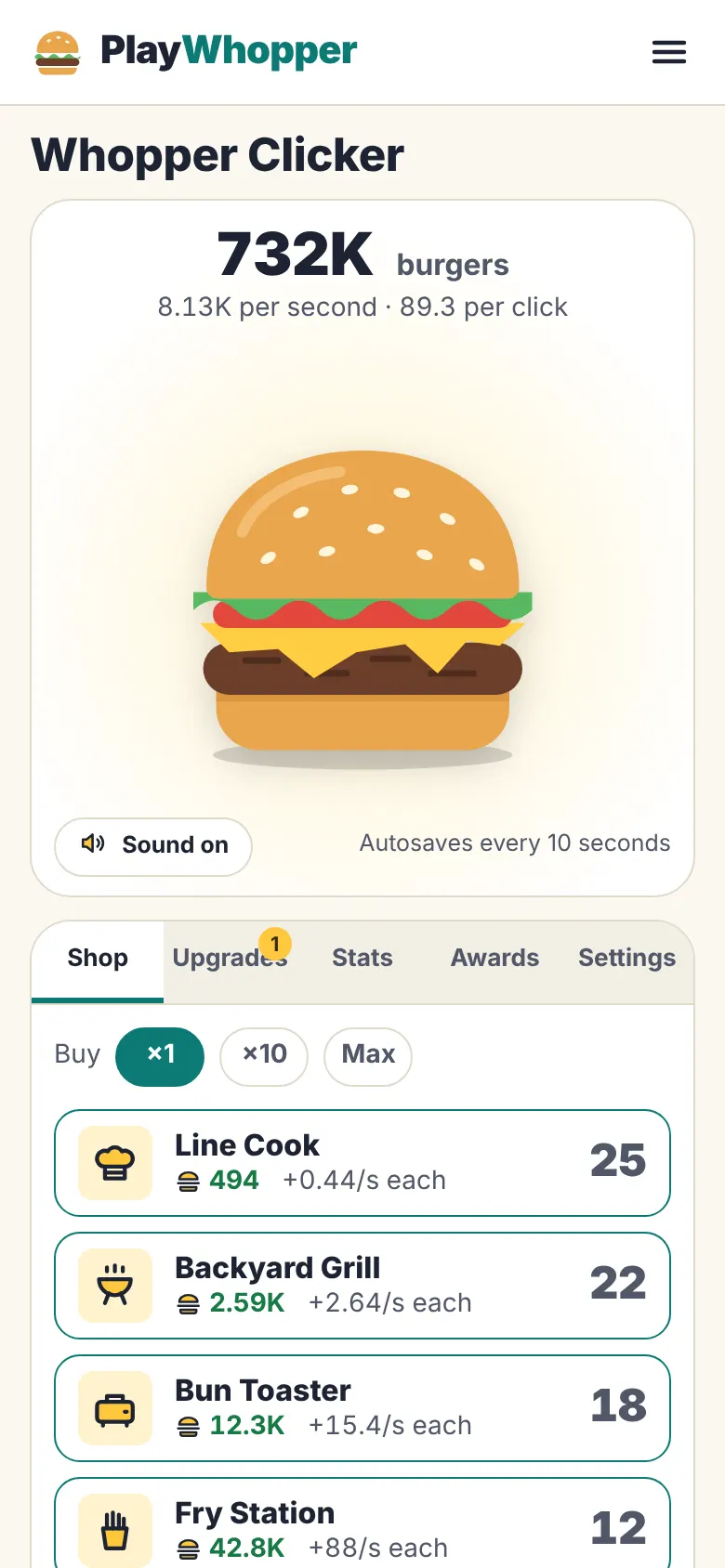
Add it to your home screen
The site includes a web app manifest with our burger icon, so adding it to your home screen gives a proper icon and the name PlayWhopper. It is a shortcut to the website, not a separate app, and it does not download the game separately.
- Android phones and tablets: open the browser menu and look for Add to Home screen or Install.
- iPhone and iPad: in Safari, use the Share button and choose Add to Home Screen.
- Chromebook: in Chrome's menu, look for the option to install the page or create a shortcut.
Browser menus change between versions, so the exact wording may differ on your device.
Saves on each device
Your save lives in the browser you play in, on that device. A phone and a laptop each keep their own, and so do two different browsers on one phone. The game saves every 10 seconds and when you leave the page.
To move between devices, use Export save in Settings on one and Import on the other. Our saving guide walks through it, and explains why private browsing tabs lose your progress when they close.
Portrait or landscape?
On a phone, portrait works best: the burger and counter fill the top of the screen and the shop sits right below, one short scroll away. In landscape, the game stays stacked, so you scroll more between the burger and the shop.
On tablets in landscape and on Chromebooks, the screen is usually wide enough to show the shop beside the burger, like on a laptop, so you can buy without scrolling.
Chromebooks
A Chromebook runs the game in Chrome like any other computer. Use the touchpad, a mouse, the touch screen if it has one, or the keyboard: focus the burger and press Enter or Space. Holding a key down does not repeat, so every burger is a real press. The Chromebook games list has more games that need no download.
Battery and data
The game is a light page with no video or ads, and the burger art is drawn in code rather than loaded as large images. Your producers keep earning while the tab is closed, so there is no need to leave the screen on.
Prefer the lightest page? The unblocked version has the same game and the same save.
If something is not working
- Progress is gone after closing the browser. You were probably in a private tab, which forgets everything when closed. Play in a normal tab, and export a backup now and then.
- The note under the burger says saving is blocked. Your browser settings are blocking site storage. The game still runs; use Export before you leave.
- No sound. Check the Sound button under the burger and your device's volume. Sound starts after your first tap.
- The page looks squashed. Rotate to portrait on a phone, or zoom your browser back to normal size.
Frequently asked questions
Is there a Whopper Clicker app?
No app is needed. The game runs in your phone's browser, and Add to Home Screen gives it an icon like an app.
Does fast tapping work on a phone?
Yes. Every tap counts, and the burger is set up so quick taps never zoom the page.
Will my phone save carry over to my computer?
Not by itself: each browser keeps its own save. Use Export on the phone and Import on the computer.
Does it work offline?
The page needs a connection to load. Once loaded it keeps running, and your producers earn while you are away for up to 4 hours.