How to Make a Clicker Game in Scratch
To make a clicker game in Scratch, you need one sprite to click, a variable that counts your score, a button that sells upgrades, and a loop that adds points on its own. This tutorial builds all of that in eight short scripts, then adds a save code and some polish. No coding experience is needed. If you would rather play clicker games other people made on Scratch, our Whopper Clicker on Scratch page links to some.
What you will build
- A burger you click to earn burgers.
- An upgrade button that makes each click worth more.
- A helper button: helpers make burgers for you every second.
- A save code, so you can carry on later.
- A bounce, a sound and a button that fades until you can afford it.
Each script below is shown as Scratch blocks, with a note saying which sprite it goes in. Under each one you can open the same script as text.
Step one: set up the project
- Open the Scratch editor.
- Make three sprites. In the sprite list, use Choose a Sprite for a ready-made one, or Paint to draw your own. Name them Burger, Upgrade and Helper. The sprite a new project starts with can be deleted or renamed.
- Open the Variables category and click Make a Variable five times, to make “burgers”, “per click”, “helpers”, “upgrade price” and “helper price”. Choose For all sprites each time, so every sprite can use them.
A variable whose checkbox is checked in the block list is shown on the stage, so you can watch your score. You may want to uncheck the prices later.
Step two: start the game
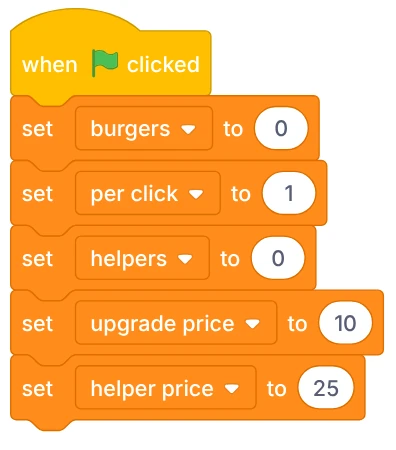
Select the Stage, next to the sprite list, and add this script. When the green flag is clicked, it resets the score, sets each click to earn one burger, and sets the starting prices: 10 burgers for the first upgrade and 25 for the first helper.
Show this script as text
when green flag clicked
set [burgers v] to (0)
set [per click v] to (1)
set [helpers v] to (0)
set [upgrade price v] to (10)
set [helper price v] to (25)
Step three: click to score
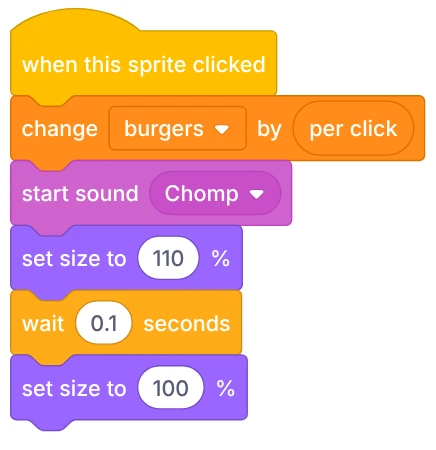
Select the Burger sprite. The when this sprite clicked block is in Events. Each click adds the value of “per click” to your burgers.
Show this script as text
when this sprite clicked
change [burgers v] by (per click)
start sound (Chomp v)
set size to (110) %
wait (0.1) seconds
set size to (100) %
The other blocks are polish, and you can add them now or later. start sound plays a sound: pick any short sound in the Sounds tab, such as Chomp from Scratch's sound library. set size to makes the burger grow to 110% for 0.1 of a second, then shrink back, so every click feels like a press.
Step four: sell an upgrade
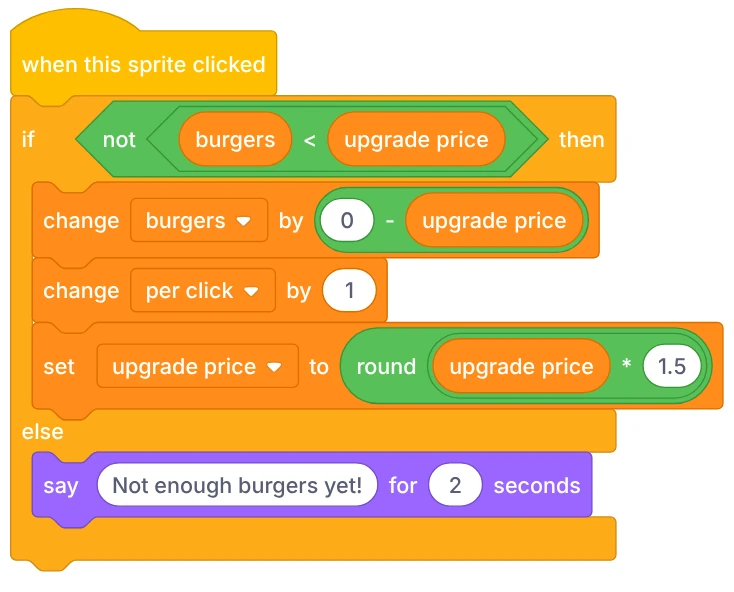
Select the Upgrade sprite. This script checks whether you can afford the upgrade, takes the burgers, adds one to “per click” and raises the price.
Show this script as text
when this sprite clicked
if <not <(burgers) < (upgrade price)>> then
change [burgers v] by ((0) - (upgrade price))
change [per click v] by (1)
set [upgrade price v] to (round ((upgrade price) * (1.5)))
else
say [Not enough burgers yet!] for (2) seconds
end
A few things worth knowing:
- Scratch has no “greater than or equal to” block, so the test is not (burgers < price), which means the same thing. Both blocks are in Operators.
- There is no “subtract from variable” block either, so we change burgers by (zero minus the price).
- The new price is the old one times 1.5, rounded, so each upgrade costs about 50% more than the last. Rising prices are what make clicker games last; our guide to how idle clicker games work explains why.
- If you cannot afford it, the button says so for 2 seconds.
Step five: add helpers that click for you
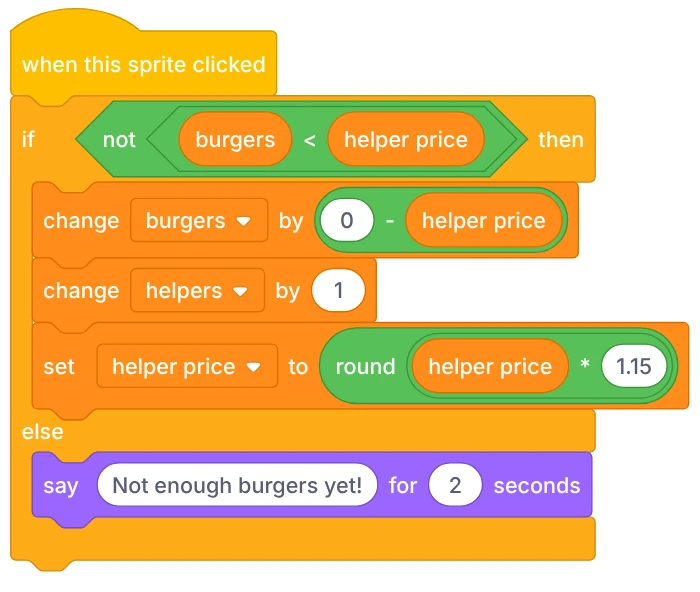
Select the Helper sprite and add the same pattern. This time, buying adds one helper, and the price grows by 15% each time, the same rate our own Whopper Clicker game uses for its producers (15%).
Show this script as text
when this sprite clicked
if <not <(burgers) < (helper price)>> then
change [burgers v] by ((0) - (helper price))
change [helpers v] by (1)
set [helper price v] to (round ((helper price) * (1.15)))
else
say [Not enough burgers yet!] for (2) seconds
end
Helpers do nothing yet. Add this second script to the Stage: once a second, forever, every helper adds one burger. This is your game's auto-clicker.
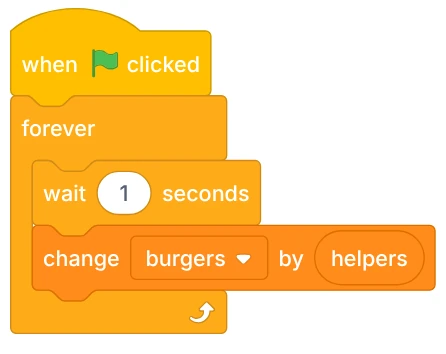
Show this script as text
when green flag clicked
forever
wait (1) seconds
change [burgers v] by (helpers)
end
Click the green flag and test it. Click the burger until you can buy a helper, then stop clicking and watch the score keep going up.
Step six: save with a variable
The setup script resets every variable when the green flag is clicked, so a player who comes back starts from zero. The simplest fix is a save code: the game shows the values of your variables, the player writes them down, and types them back in next time. (Our own games save for you automatically; see how saving works if you are curious.)
Add both scripts to the Burger sprite (the Stage's block list has no say block). Pressing S shows the code:

Show this script as text
when [s v] key pressed
say (join [Save code: ] (join (burgers) (join [ / ] (join (per click) (join [ / ] (helpers)))))) for (10) seconds
The join blocks glue text together: the words “Save code:”, then burgers, per click and helpers with slashes in between. Pressing L asks for the three numbers one at a time:
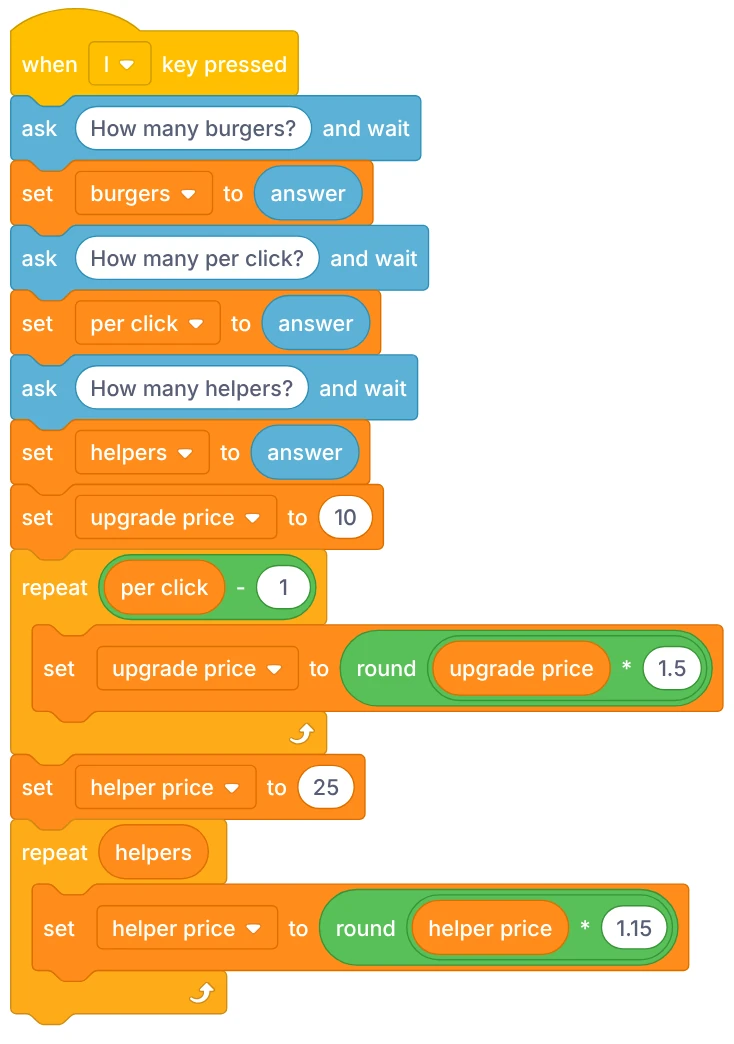
Show this script as text
when [l v] key pressed
ask [How many burgers?] and wait
set [burgers v] to (answer)
ask [How many per click?] and wait
set [per click v] to (answer)
ask [How many helpers?] and wait
set [helpers v] to (answer)
set [upgrade price v] to (10)
repeat ((per click) - (1))
set [upgrade price v] to (round ((upgrade price) * (1.5)))
end
set [helper price v] to (25)
repeat (helpers)
set [helper price v] to (round ((helper price) * (1.15)))
end
The prices are not part of the code, because the game can work them out. The two repeat loops start from the first prices and raise them once for every upgrade and helper you already own, exactly as buying them did.
What about cloud variables?
Scratch also has cloud variables, which are stored online. According to the Scratch Wiki, they cannot be used by New Scratchers, and they can only hold numbers, so they need more work than a beginner project. The save code above works for everyone.
Step seven: polish
Small touches make a clicker game feel good. This script on the Upgrade sprite fades the button with the ghost effect while you cannot afford it, so players can see at a glance when to buy.
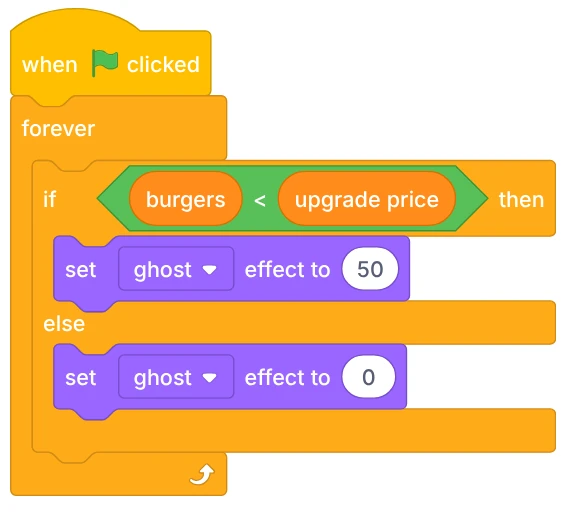
Show this script as text
when green flag clicked
forever
if <(burgers) < (upgrade price)> then
set [ghost v] effect to (50)
else
set [ghost v] effect to (0)
end
end
More ideas to try on your own:
- Copy the polish script to the Helper sprite and change it to use “helper price”.
- Add a second kind of helper that costs more and makes more burgers.
- Use say to celebrate milestones, such as your first helper.
- Select the Stage and draw a background in its Backdrops tab.
Keep your project
In the editor's File menu, Save to your computer downloads your project as a file, and Load from your computer opens it again later.
Where the block names come from
Every block name above was checked against Scratch's own block labels, and the menu names against its File menu, sprite menu and variable dialog and editor tabs. The block pictures were drawn with the open-source scratchblocks library.
Scratch is a project of the Scratch Foundation. PlayWhopper is not affiliated with it.